If you are designing a new product, you might struggle to decide what devices use a touch screen to deliver the best user experience. Adding a touch interface to an inappropriate device ruins usability, drives up production costs, and frustrates your end-users. We will help you evaluate your interface requirements to choose the perfect display solution for your specific application.
Modern devices use a touch screen to streamline human-machine interaction across industrial, medical, automotive, and retail environments.1 Common examples include industrial human-machine interfaces (HMIs), medical patient monitors, automotive dashboards, smart home hubs, and outdoor kiosks. These devices rely on touchscreens to simplify data entry, machine control, and navigation.
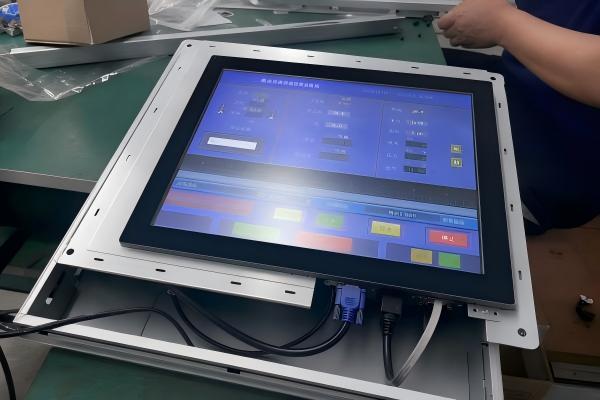
As a touchscreen manufacturer with 15 years of experience in Shenzhen, I have seen many integration projects succeed or fail. Let us look past the marketing hype and examine how to strategically determine if your product actually needs this technology.
How do we classify what devices use a touch screen by interaction task?
Distributors often classify screen integration by industry, but this surface-level grouping leads to bad design choices. When you focus on the wrong hardware specifications, your users suffer through clunky menus. We must look at the specific tasks your users perform.
To design effectively, analyze what devices use a touch screen based on user tasks: machine control, data entry, system configuration, navigation, or status monitoring. Using this task-based approach ensures you choose a touch interface that enhances workflow speed, reduces operator errors, and matches the physical environment.2

Instead of asking which industry needs touch, we look at what the user is trying to accomplish. In our Shenzhen factory, we build custom screens for five primary interaction tasks. Here is how they break down across actual applications.
1. Machine Control and Robotics
In robotics and industrial automation, operators need to start, stop, or adjust machinery quickly. A touch interface replaces complex arrays of physical switches. For instance, I recently helped configure a custom 10.1-inch projected capacitive (PCAP) screen for an industrial robotic arm controller used in a European automotive plant. The operator uses touch to jog the robot arm during setup, which dramatically speeds up teaching cycles.
2. Data Entry and Medical Documentation
Medical carts and patient monitors require frequent data entry. Traditional keyboards collect dust, liquids, and pathogens, making them difficult to sanitize.3 A flat, seamless glass touch screen allows nurses to enter patient vitals and quickly wipe down the surface with harsh chemical disinfectants.4
3. Navigation and Outdoor Logistics
For marine navigation or outdoor logistics terminals, the screen serves as an interactive map. Users must zoom, pinch, and drag. Here, multi-touch capabilities are non-negotiable.
4. System Configuration and Diagnostics
Many smart home appliances or power generators only require touch interaction during initial setup or periodic maintenance. The touch screen acts as a temporary keyboard and menu, then transitions to a simple status display.
5. Status Monitoring
Some displays are primarily for viewing. However, adding basic touch zones allows users to tap a graph to expand data points without needing a mouse or physical dial.
| Task Type | Primary User Action | Typical Screen Size | Key Touch Feature |
|---|---|---|---|
| Machine Control | Tap, hold, slider | 7" to 15.6" | High durability, low latency |
| Data Entry | Virtual keyboard, checkboxes | 10.1" to 21.5" | Easy cleaning, high precision |
| Navigation | Pinch, zoom, swipe | 12.1" to 15.6" | Multi-touch, wet finger tracking |
| Configuration | Menu selection | 4.3" to 7" | Low cost, simple UI integration |
| Status Monitoring | Tap to expand | 5" to 10.4" | Wide viewing angles, high contrast |
Does every display really need a touch screen?
Product designers often assume adding touch functionality always makes a device better. However, forcing touch onto a system that does not benefit from it increases your bill of materials (BOM) and complicates software development. You must evaluate if touch adds real value.
A display does not automatically require touch capabilities. To justify a touch screen, the interface must measurably improve user operation speed, offer greater UI flexibility, or simplify complex physical control panels. If operators only view static information, a standard passive display is more reliable and cost-effective.5
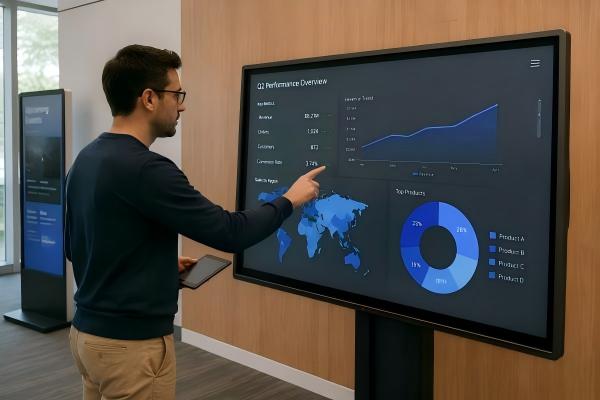
In my fifteen years of manufacturing touch panels, I have occasionally advised clients against adding touch. Why? Because unnecessary touchscreens introduce points of failure, especially in demanding environments.
To determine if touch is truly necessary, we run our clients' designs through three critical questions:
How often does the user interact with the device?
If an operator interacts with a screen once a day to check a temperature log, a physical button or a simple rotary encoder is far more cost-effective. Conversely, if they must input data every five minutes, a touch keyboard is highly beneficial.
What specific actions are they performing?
If the actions are simple—like raising or lowering a temperature—a physical arrow button works perfectly. If the actions require selecting items from dynamic lists, entering alphanumeric strings, or drawing paths, a touchscreen is indispensable.
Does touch improve interface clarity and speed?
A physical panel with 50 buttons is confusing. A touch screen simplifies this by showing only the buttons needed for the current step of the process.
Let us look at a real comparison:
- High-Touch Value: A medical anesthesia machine where parameters must change instantly based on live patient vitals.
- Low-Touch Value: A wall-mounted HVAC monitoring panel in a commercial building that displays air quality index data 99% of the time.
Before committing to a touch sensor, map out your user journey. If physical buttons can do the job without confusing the user, you may save thousands of dollars in licensing, development, and hardware costs.
How does environment dictate what devices use a touch screen technology?
Choosing the wrong touch technology for your operating environment leads to unresponsive screens and field failures. A device that works perfectly in a clean office will fail miserably under pouring rain or freezing temperatures. You must match the sensor technology to the real-world environment.
Operating environments dictate what devices use a touch screen technology rather than the product category itself. Factors like glove usage, water exposure, extreme temperatures, direct sunlight, and chemical contaminants determine whether Projected Capacitive (PCAP), Resistive, or Infrared touch technology is the only viable choice for reliable operation.6

Many of our European clients ask us for "an industrial touchscreen." We always respond: "What does the working environment look like?" There is no single "industrial" technology.
The Battle of Touch Technologies
The two most common technologies are Projected Capacitive (PCAP) and Resistive.
- Projected Capacitive (PCAP): This is the technology used in your smartphone. It supports multi-touch, has excellent optical clarity, and uses a highly durable glass surface. However, standard PCAP can register "ghost touches" when exposed to water droplets or conductive fluids.7
- Resistive Touch: This technology relies on pressure. It works with any input device—thick winter gloves, pens, or fingernails.8 It is highly resistant to water and electrical noise, making it perfect for heavy machinery. However, the plastic outer film can be scratched, and it lacks multi-touch capabilities.
Environmental Checklists for Integrators
When we consult on new projects, we evaluate these environmental parameters:
- Outdoor Sunlight: Requires high-brightness backlights (1000+ nits) and anti-reflective/anti-glare (AR/AG) surface treatments.
- Water and Rain: Requires specialized touch controller tuning (like our Ilitek or EETI controller configurations) to ignore water droplets while registering finger touches.
- Heavy Gloves: Thick leather or silicone gloves require either a resistive touch panel or a highly sensitive PCAP sensor tuned specifically for high-dielectric materials.
| Environmental Factor | PCAP (Capacitive) | Resistive | Touch Tuning Needed? |
|---|---|---|---|
| Rain / Water Spray | Moderate (Requires custom tuning) | Excellent (Unaffected) | Yes, for PCAP |
| Thick Work Gloves | Moderate (Requires high sensitivity) | Excellent (Pressure-based) | Yes, for PCAP |
| Scratch Resistance | Excellent (7H-9H Hardness Glass) | Poor (3H Plastic Film) | No |
| Extreme Heat / Cold | Excellent (With industrial components) | Moderate (Film can degrade) | No |
When should what devices use a touch screen transition to hybrid controls?
Relying solely on a glass touch screen can endanger lives in critical operating situations. When an operator cannot look at the screen, they lose all spatial awareness and control. You must know when to combine physical buttons with touch screens.
Deciding what devices use a touch screen alongside physical buttons—known as hybrid control—is essential for applications requiring blind operation, tactile feedback, or emergency overrides. Combining a touch screen for menus with physical dials or buttons for critical actions ensures safety and operational efficiency in high-stress environments.
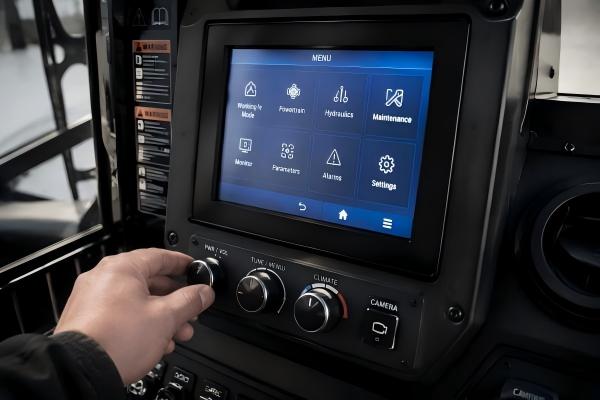
I recall working with an agricultural machine distributor who insisted on a completely flat, glass-only cockpit display. After field tests, the tractor operators hated it. While driving over bumpy fields, their fingers slipped constantly. They could not adjust the plow depth without looking down at the screen, which created a safety hazard. We redesigned the bezel to include physical rotary encoders alongside our 12.1-inch PCAP touch screen. The result was a massive success.
The Power of Tactile Feedback
Touchscreens lack physical boundaries. For certain actions, operators need to "feel" the control without looking.
- Emergency Stops (E-Stop): An emergency shutdown button must always be a physical, hard-wired red button.9 You should never bury an emergency stop inside a touchscreen menu.
- Blind Adjustments: In automotive applications, adjusting the cabin temperature or volume should ideally be physical dials.10 This allows drivers to keep their eyes on the road.
- High-Vibration Environments: In helicopters, marine vessels, or mining trucks, physical grab rails with integrated thumb buttons help stabilize the hand while using a touchscreen.
Designing the Perfect Hybrid Interface
To design a hybrid interface, split your control architecture:
- Use the Touch Screen for: Setting up profiles, viewing complex diagnostics, entering text, navigating maps, and system calibrations.
- Use Physical Controls for: Incremental adjustments (dials), safety-critical functions (switches), and frequently used hotkeys (buttons).
This balanced approach provides the best of both worlds: the infinite flexibility of software-defined UI paired with the reliable, tactile security of physical hardware.
Frequently Asked Questions
Can a capacitive touch screen work with thick winter gloves?
Yes, but it requires specialized touch controller ICs (such as EETI or Ilitek) configured for high-sensitivity operation. For extremely thick gloves, a resistive touch screen is often a more reliable choice.
What is the difference between PCAP and Resistive touch screens?
PCAP uses electrical fields to detect touch, supporting multi-touch and featuring a durable glass surface. Resistive screens use physical pressure on a flexible plastic film, allowing operation with any stylus or glove, but are easier to scratch.
How do you make a touch screen readable in direct sunlight?
We use high-brightness LCD backlights (typically 1000 nits or higher) combined with optical bonding to eliminate air gaps. We also apply Anti-Reflective (AR) and Anti-Glare (AG) coatings to the cover glass.
Why do touch screens fail in wet or high-humidity environments?
Water is conductive. Standard capacitive touch screens can mistake water droplets for finger presses.11 We solve this by tuning the controller firmware to use mutual capacitance sensing, which filters out water interference.
Conclusion
Determining what devices use a touch screen requires evaluating user tasks, operating environments, and safety needs rather than following industry trends. As a dedicated OEM/ODM touch screen manufacturer in Shenzhen with over 15 years of experience, we specialize in helping distributors and integrators design highly customized, rugged touch display solutions. Whether your project demands water resistance, glove compatibility, or high-brightness outdoor performance, we are here to help. Contact our engineering team today to discuss your next custom touch screen display project.
"Impact of button position and touchscreen font size on ... - PMC", https://pmc.ncbi.nlm.nih.gov/articles/PMC7330495/. Touchscreen systems are used as direct-input interfaces in a range of devices and public terminals, including applications beyond consumer electronics. Evidence role: general_support; source type: encyclopedia. Supports: Examples of touchscreen use in consumer, industrial, medical, automotive, and public-information systems.. Scope note: A general reference can establish breadth of application, but does not demonstrate that touch improves every workflow in each sector. ↩
"Applying Human Factors and Usability Engineering to Medical Devices ...", https://www.fda.gov/media/80481/download. Human-factors research treats task analysis and context of use as central inputs to interface design because control layouts and interaction methods influence task time, workload, and error opportunities. Evidence role: mechanism; source type: research. Supports: Human-factors literature explaining how task analysis and context-of-use analysis inform interface design and can affect efficiency and error likelihood.. Scope note: The magnitude and direction of performance effects depend on the task, users, interface implementation, and operating environment. ↩
"What's on your keyboard? A systematic review of the ... - PMC", https://pmc.ncbi.nlm.nih.gov/articles/PMC6429971/. Healthcare infection-control evidence identifies frequently touched equipment, including computer input devices, as surfaces that may require cleaning and disinfection when used in patient-care environments. Evidence role: general_support; source type: government. Supports: Evidence or infection-control guidance concerning contamination of high-touch computer equipment and the need for cleaning and disinfection.. Scope note: Surface contamination does not by itself establish transmission risk in a particular clinical setting, and cleaning compatibility varies by device. ↩
"Recommendations for Disinfection and Sterilization in ...", https://www.cdc.gov/infection-control/hcp/disinfection-sterilization/summary-recommendations.html. Infection-prevention guidance recommends cleaning and disinfecting noncritical patient-care equipment using agents and procedures compatible with the manufacturer's instructions for use. Evidence role: general_support; source type: government. Supports: Guidance that noncritical medical equipment should be cleaned and disinfected according to manufacturer instructions and compatible disinfectants.. Scope note: This guidance does not prove that every glass touchscreen or surface coating tolerates harsh disinfectants; compatibility must be verified for the specific assembly. ↩
"(PDF) Automotive Interior: A study on the Dashboard Touch ...", https://www.academia.edu/89704704/Automotive_Interior_A_study_on_the_Dashboard_Touch_Screen_Panel_and_Its_Impact_to_the_Driver. Comparative human-factors literature describes touch and physical controls as design alternatives with different interaction, maintenance, and failure-mode trade-offs rather than universally superior options. Evidence role: general_support; source type: research. Supports: Evidence comparing touch and non-touch controls in terms of interaction demands, failure modes, and design trade-offs.. Scope note: A source on general trade-offs cannot establish lower cost or higher reliability for every passive-display configuration. ↩
"Review of Capacitive Touchscreen Technologies: Overview, Research ...", https://pmc.ncbi.nlm.nih.gov/articles/PMC8309784/. Touch technologies use different sensing mechanisms—capacitive field disturbance, pressure-induced layer contact, or interruption of optical beams—so water, gloves, contaminants, temperature, and optical conditions can affect their suitability. Evidence role: mechanism; source type: paper. Supports: Technical descriptions of the sensing principles and environmental sensitivities of projected-capacitive, resistive, and infrared touch technologies.. Scope note: Environmental factors inform technology selection but rarely make one technology the only viable option, since controller tuning, sealing, gloves, and system design can alter performance. ↩
"Fundamentals of Projected-Capacitive Touch Technology", https://www.academia.edu/8426271/Part_1_Fundamentals_of_Projected_Capacitive_Touch_Technology. Capacitive-touch research reports that water and other conductive media can perturb measured capacitance, creating challenges for distinguishing intended contact from moisture-induced signals. Evidence role: mechanism; source type: paper. Supports: Research showing that water can alter capacitive touch signals and complicate discrimination between intended touches and environmental moisture.. Scope note: False-touch behavior depends on sensor geometry, controller algorithms, grounding, enclosure design, and the quantity and composition of the liquid. ↩
"Resistive touchscreen", https://en.wikipedia.org/wiki/Resistive_touchscreen. A resistive touchscreen detects pressure that brings conductive layers into contact, enabling operation with a finger, stylus, or other pressure-applying object rather than requiring a conductive bare finger. Evidence role: definition; source type: encyclopedia. Supports: The pressure-based operating principle of resistive touchscreens and their ability to respond to nonconductive implements.. Scope note: Usability with a particular glove or pen still depends on required actuation force, tip size, calibration, and the touchscreen construction. ↩
"Presence of push labels on emergency stop button ...", http://www.osha.gov/laws-regs/standardinterpretations/1996-09-10. ISO 13850 specifies principles for emergency-stop functions on machinery, including requirements for an accessible emergency-stop device and conventional actuator color coding. Evidence role: expert_consensus; source type: institution. Supports: Recognized machinery-safety requirements for emergency-stop function, including readily accessible actuators and red actuator-color conventions.. Scope note: The applicable safety standard, circuit architecture, and emergency-stop requirements vary by jurisdiction, machine type, and risk assessment; the standard should be consulted directly. ↩
"Understanding the Problem", https://www.nhtsa.gov/book/countermeasures-that-work/distracted-driving/understanding-problem. Driver-distraction research evaluates in-vehicle interfaces by their visual, manual, and cognitive demand, with controls that require prolonged visual attention posing potential safety concerns while driving. Evidence role: general_support; source type: government. Supports: Driver-distraction guidance and research on visual-manual demands of in-vehicle controls.. Scope note: This evidence does not establish that physical dials are always superior; well-designed touch interfaces, voice control, lockouts, and task timing can change the result. ↩
"RainCheck: Overcoming Capacitive Interference Caused ...", https://faculty.washington.edu/wobbrock/pubs/icmi-18.01.pdf. Conductive liquids and moisture can alter the electric-field and capacitance measurements used by capacitive touch sensors, potentially producing signals that resemble touch events. Evidence role: mechanism; source type: paper. Supports: The role of conductive liquids and moisture in changing capacitive sensor measurements and producing ambiguous touch signals.. Scope note: Pure water is only weakly conductive; interference in practice depends substantially on dissolved ions, droplet geometry, sensor design, and signal-processing methods. ↩
